
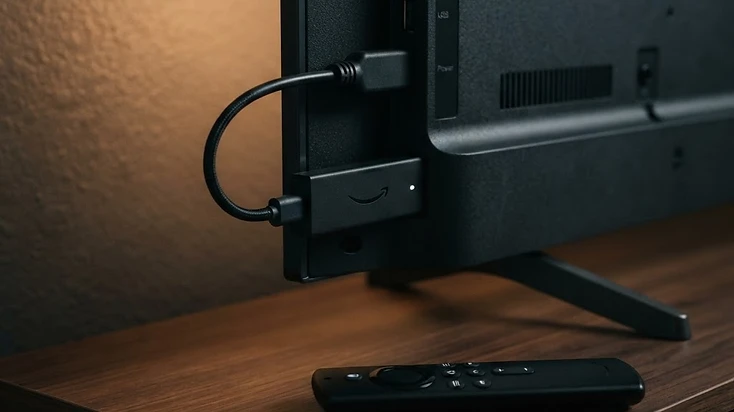
Why Firestick Needs Sideloading
Amazon's Appstore does not list most IPTV players. The store curates its catalog and does not include playlist-based media players that read M3U or Xtream Codes sources. This means you cannot simply search for and install an IPTV player the way you would Netflix or Disney+. Instead, you sideload the app — install it from outside the official Appstore using the free Downloader app.
Sideloading is not a hack or a workaround. Amazon officially supports it through the Developer Options setting, which lets you allow installs from unknown sources for specific apps. The process takes a few minutes and does not require a computer.
- 1
Enable unknown sources
Go to Settings → My Fire TV → Developer Options and turn on Install Unknown Apps for the Downloader app. On newer Fire TV software, Developer Options is hidden — go to Settings → My Fire TV → About, highlight your device name, and press Select seven times to reveal it.
- 2
Install the Downloader app
Search for 'Downloader' in the Find menu and install the app by AFTVnews. It is a free, safe browser used to download APK files directly on Fire TV.
- 3
Enter the download URL
Open Downloader, allow file access, and type the official download shortcode or URL for your chosen IPTV player. Press Go to start the download.
- 4
Install the APK
When the download finishes, Downloader prompts you to install. Select Install, then Done. Delete the APK file when asked to save storage.
Top 4 IPTV Players for Firestick Compared
Four players dominate the Firestick IPTV landscape in 2026. Each supports M3U and Xtream Codes playlists, but they differ in price, interface, documentation, and ad support. Here is a brief look at each, followed by a side-by-side comparison.
1. Televizo Player
Televizo is a free, ad-free IPTV player with a clean, remote-friendly interface. Every core feature — multiple playlists, EPG, favorites, channel groups, and channel blocking — is available without paying. An optional Premium upgrade adds extra player features but is not required. Televizo is the only player in this list with a dedicated official support website with step-by-step setup guides for every major device.
2. TiviMate
TiviMate is a popular option with a polished, TV-focused interface. Its free tier is limited to a single playlist and basic features; unlocking multiple playlists, extended EPG, and the full feature set requires a paid premium license. TiviMate does not have an official support website — help relies on community forums.
3. XCIPTV
XCIPTV is a free, open-source player with a functional interface and skin customization. It supports M3U, Xtream Codes, EPG, and multiple playlists without paying. Like TiviMate, it does not have a dedicated official support site — documentation comes from community resources.
4. IPTV Smarters Pro
IPTV Smarters Pro is free to install but ad-supported — banner advertisements appear within the interface. It supports M3U, Xtream Codes, EPG, and multiple playlists. The ad placements and denser layout can make navigation feel less polished on a TV compared to Televizo's clean interface.
| Feature | Televizo | TiviMate | XCIPTV | IPTV Smarters Pro |
|---|---|---|---|---|
| Free to install | Yes | Limited free tier | Yes | Yes |
| Ad-free | Yes | Yes | Yes | No (ads in UI) |
| M3U support | Yes | Yes | Yes | Yes |
| Xtream Codes support | Yes | Yes | Yes | Yes |
| Multiple playlists (free) | Yes | No (paid only) | Yes | Yes |
| EPG | Yes | Yes (extended paid) | Yes | Yes |
| Official setup guides | Yes | No | No | No |
| Remote-friendly UI | Yes | Yes | Yes | Moderate |
Why Televizo Is the Best Free Option
Among the four players compared, Televizo stands out as the best free option for Firestick users. Three factors set it apart: a fully functional free tier with no ads, official setup documentation, and a clean interface designed for remote navigation.
Every core feature is free
Televizo does not lock core features behind a paywall. Multiple playlists, EPG, favorites, channel groups, channel blocking, and grid and list layouts are all available in the free version. TiviMate restricts multiple playlists and extended EPG to its paid tier. IPTV Smarters Pro is free but offsets that with in-app advertisements. Televizo gives you everything without ads and without paying.
Official setup documentation
Televizo is the only player in this comparison with a dedicated official support website. It includes step-by-step setup guides for Firestick, Android TV, Google TV, Android phones, and Smart TVs, plus a troubleshooting hub, a blog with detailed articles, and a contact form for direct support. When something goes wrong on your Firestick, you have a maintained, documented resource. The other three players rely on community forums and user-generated content.
A clean, ad-free interface
Televizo's interface is modern and clean, with large focusable elements and clear highlighting of the selected item — making it comfortable to use from across the room with a Fire TV remote. IPTV Smarters Pro's banner ads clutter the screen and interrupt the viewing experience. Televizo keeps the focus on your channels and content with no promotional banners.
How to Install an IPTV Player on Firestick
Installing an IPTV player on Firestick takes about five minutes. The process is the same for any sideloaded app: enable unknown sources, install the Downloader app, enter the download URL, and install the APK. Here is a quick overview.
- 1
Enable Developer Options
Go to Settings → My Fire TV → About, highlight your device name, and press Select seven times to reveal Developer Options.
- 2
Allow unknown apps
In Developer Options, turn on Install Unknown Apps for the Downloader app.
- 3
Install Downloader
Search for 'Downloader' in the Find menu and install the app by AFTVnews.
- 4
Download the player
Open Downloader, type the official download URL or shortcode, and press Go to download the APK.
- 5
Install and open
When the download finishes, select Install, then Done. Delete the APK to save storage, then launch the player from Your Apps & Channels.
- 6
Add your playlist
Open the player, choose Add Playlist, and enter your M3U URL or Xtream Codes credentials. Save and wait for your channels to load.
For the complete, step-by-step walkthrough with screenshots, troubleshooting tips, and the official Televizo download link, follow the dedicated Firestick setup guide.
Read the complete Televizo Firestick setup guide →Frequently Asked Questions
The most common questions about using an IPTV player on Firestick, with direct answers.
Televizo Editorial Team
Product Documentation & Support
The Televizo Editorial Team writes and maintains the official documentation for Televizo Player. We test every guide on real Android TV, Fire TV, Google TV and Smart TV hardware using both M3U and Xtream Codes playlists, and we update articles whenever the app or setup steps change.
Published 9 Oct 2026 · Last updated 9 Oct 2026 · Reviewed for accuracy 9 Oct 2026
Related Televizo Guides
Ready to get started?
Install Televizo, add your playlist, or get help from our support team.