
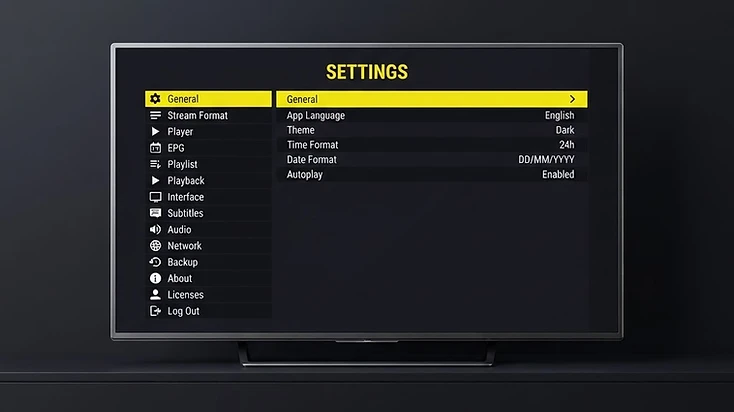
Why IPTV Buffers: The Four Causes
Buffering is the most common IPTV complaint, and almost everyone blames the player first. In reality, the player is usually just the messenger — buffering comes from one of four places, and identifying which one is the key to fixing it.
Before changing any settings, understand the four sources of buffering. Almost every case maps to one of them.
1. Network Speed and Stability
Your internet connection is the most common cause of buffering. The issue is rarely raw speed alone — it is stability. A connection that reports high megabits per second can still buffer if it suffers from jitter, packet loss, or momentary drops. Run a speed test on the TV or stick itself, not just on a phone elsewhere in the house, because the connection at the TV is the one that matters for playback.
- Slow or unstable internet with high latency or jitter
- Router congestion from many devices streaming or downloading at once
- Background downloads, cloud backups, or system updates using the connection
- DNS or carrier-level routing issues that slow specific servers
2. Wi-Fi vs Ethernet
On a TV, weak Wi-Fi is the usual culprit. The TV sits far from the router, the signal passes through walls, or other devices compete for the same bandwidth. A wired Ethernet connection is the single most effective upgrade for stable IPTV playback because it removes Wi-Fi congestion and signal weakness as variables entirely. If your device supports Ethernet, use it.
- Weak Wi-Fi signal between the router and the TV or stick
- The TV or stick is behind the TV or far from the router
- 2.4 GHz Wi-Fi congestion from neighbors and other devices
- No Ethernet option on the device, or an adapter not being used
3. Server Load on the Provider
The server that delivers your stream can also cause buffering. During peak viewing hours, provider servers come under heavy load and struggle to deliver every stream smoothly. A specific channel may be served from an overloaded or distant server, while others play fine. This is why one channel can buffer constantly while the rest of the playlist works — the problem is upstream of your home, and no amount of router restarting will fix it.
- Server overload during peak viewing times
- A specific channel served from a slow or distant server
- Provider infrastructure limitations or outages
- Stream bitrate set higher than the server can reliably deliver
4. Device RAM and Performance
The device decoding the stream matters too. Budget streaming sticks and older TVs often have limited RAM and CPU, which makes them struggle with high-bitrate or high-resolution streams. When the device cannot decode video fast enough, the player buffers while it waits for the decoder to catch up. Low storage and outdated system software also contribute to poor playback performance.
- Low RAM or CPU on budget sticks and older TVs
- Outdated device firmware or system software
- Low available storage affecting app performance
- Background apps competing for device resources
Quick-Check Table: Is It Your Network, Device, or Provider?
Use this table to find the most likely cause of your buffering before you start changing settings. Match the symptom you are seeing to the column that fits, and start with the fixes in that row.
| Symptom | Your network | Your device | Your provider |
|---|---|---|---|
| Every channel buffers, on every device | Likely cause — check connection and Wi-Fi | Possible — check RAM and storage | Less likely unless the whole server is down |
| Only one or a few channels buffer | Not the cause — other streams play fine | Not the cause — the device handles other channels | Likely cause — that stream or server is the issue |
| Buffering happens at peak times only | Possible — your connection may be congested | Less likely | Likely cause — provider server is overloaded at peak |
| Buffering happens at all hours | Likely cause — consistent connection issue | Possible — device struggles with the stream | Possible — a consistently slow server or stream |
| Same playlist buffers on another device on the same network | Likely cause — the network is the common factor | Less likely | Less likely |
| Same playlist buffers on another network | Not the cause — it follows the playlist | Not the cause — it follows the playlist | Likely cause — the source or server is the issue |
| Speed test on the TV shows good, stable speed | Less likely — but check for jitter | More likely — device may be struggling | More likely — the problem is upstream |
| Speed test on the TV shows slow or unstable speed | Likely cause — fix the connection first | Cannot confirm until the network is ruled out | Cannot confirm until the network is ruled out |
Network Fixes: Router Restart, Ethernet, and DNS
If the quick-check table points to your network, these fixes resolve the majority of buffering cases. Work through them in order — each one targets a different network cause.
1. Restart Your Router
Power-cycle the router and wait a full minute before reconnecting. This clears congestion, refreshes your connection to your ISP, and resolves many temporary issues. It is the single most common fix for buffering, and it takes less than two minutes.
2. Switch to Ethernet
A wired Ethernet connection is the single most effective upgrade for stable IPTV playback on a TV. It removes Wi-Fi congestion, signal weakness, and interference from other devices as variables entirely. If your device has an Ethernet port, use it. If it does not — most Fire TV sticks do not — use a compatible Ethernet adapter. The improvement over Wi-Fi is often immediate and dramatic.
3. Change Your DNS
DNS issues can slow access to specific servers without affecting your overall speed test. If your router or device is using your ISP's default DNS, switching to a public DNS resolver can improve routing to your provider's servers. Common options include Cloudflare (1.1.1.1), Google (8.8.8.8), and Quad9 (9.9.9.9). You can change DNS on the router so every device benefits, or on the TV or stick itself in network settings.
4. Reduce Network Load
Pause cloud backups, large game downloads, and system updates on other devices sharing the network. If several people are streaming at once, your connection may not sustain all of it. Reducing concurrent load frees bandwidth for the stream that is buffering.
5. Improve Wi-Fi If Ethernet Is Not Possible
If you cannot use Ethernet, move the TV or stick closer to the router, reduce the number of walls between them, or switch to the 5 GHz band where available to reduce congestion from other devices. An HDMI extender can move a Firestick away from the back of the TV, where the TV itself blocks the Wi-Fi signal.
Device Fixes: Clear App Cache and Lower Stream Quality
If the quick-check table points to your device, these fixes target the device-side causes of buffering. They apply across Fire TV, Android TV, and Google TV — the exact menu paths differ slightly but the steps are the same.
1. Clear the Televizo App Cache
Clearing the app cache removes temporary files that can build up and slow the app over time. This is safe — it does not remove your playlists or settings. On Fire TV, go to Settings then Applications then Manage Installed Applications then Televizo then Clear cache. On Android TV and Google TV, go to Settings then Apps then Televizo then Storage then Clear cache. After clearing, reopen Televizo and reload your playlist.
2. Lower Stream Quality in Televizo Settings
If your device struggles with high-bitrate or high-resolution streams, lowering the stream quality in Televizo settings can eliminate buffering without changing anything else. A high-bitrate 4K stream requires far more bandwidth and decoding power than a standard live channel. If your playlist points to the highest-quality version of a channel, switching to a lower-quality stream reduces the load on both your connection and your device. Open Televizo settings and look for the stream quality or resolution option, then set it to a lower value and test.
3. Restart Your Device Regularly
Power-cycle your TV, stick, or box to free memory and clear temporary state that can cause stuttering. Budget sticks have limited RAM and fill up quickly, so a regular restart keeps memory and network state clean. Restarting weekly is a good habit for Firesticks in particular.
4. Close Background Apps
On devices with limited RAM, close other apps running in the background to free memory for playback. On Fire TV, force-stop unused apps from Settings then Applications. On Android TV and Google TV, close them from the app switcher. Free memory means the decoder has more room to keep up with the stream.
5. Update Televizo and Your Device
Install the latest Televizo version from the official store or download link — updates include performance and decoding fixes. Also update your device firmware in system settings, because outdated system software can affect playback performance. After updating, restart the app and reload your playlist.
When It's Your Provider — and What to Do Next
If you have worked through the network fixes and device fixes and the buffering persists, the cause is almost always on your provider's server. No setting on your device or in Televizo can fix an overloaded or distant server.
The signs that the problem is on your provider's side:
- Your speed test on the TV shows good, stable speed, but a specific channel always buffers.
- Buffering only happens at peak viewing times, when provider servers are under load.
- The same playlist buffers on two different networks — your home Wi-Fi and a mobile hotspot.
- Some channels play smoothly while others buffer constantly, on every device you test.
When the problem is on your provider's side, contact them and report the specific channels and times. If the problem is persistent across many channels and the provider cannot resolve it, it may be time to consider a different, more reliable service.
Televizo Player is the interface — it plays what your playlist delivers. If the source stream or server is the cause, no player setting will fix it. If you need a more reliable compatible TV service, you can explore alternative subscription plans that work smoothly with Televizo Player.
For the full troubleshooting walkthrough covering playlist errors, missing channels, EPG problems and more, see the complete Televizo Player troubleshooting guide.
Read the complete troubleshooting guide →IPTV Buffering FAQ
Direct answers to the most common questions about IPTV buffering. Each answer stands on its own, so you can read only what you need.
Stop Buffering and Get Back to Watching
Buffering is frustrating, but it is almost always fixable once you know which of the four causes is responsible. Start with the quick-check table to isolate whether the problem is your network, your device, or your provider. Apply the network fixes first — a router restart and Ethernet solve more cases than any other step — then the device fixes if the network is ruled out. Use the two-network test to separate your connection from your provider's server.
Remember that Televizo Player is the interface — it plays what your playlist delivers. If the source stream or server is the cause, no player setting will fix it. Use the resources below to take the right next step.
Televizo Support Team
Product Documentation & Troubleshooting
The Televizo Support Team creates product documentation and troubleshooting resources based on the Televizo Player application and common user support scenarios. We separate problems caused by the app, the device, the network and the playlist source so you can reach the right fix — and the right support — faster.
Published 7 Oct 2026 · Last updated 7 Oct 2026 · Reviewed for accuracy 7 Oct 2026
Related Televizo Guides
Ready to get started?
Install Televizo, add your playlist, or get help from our support team.