
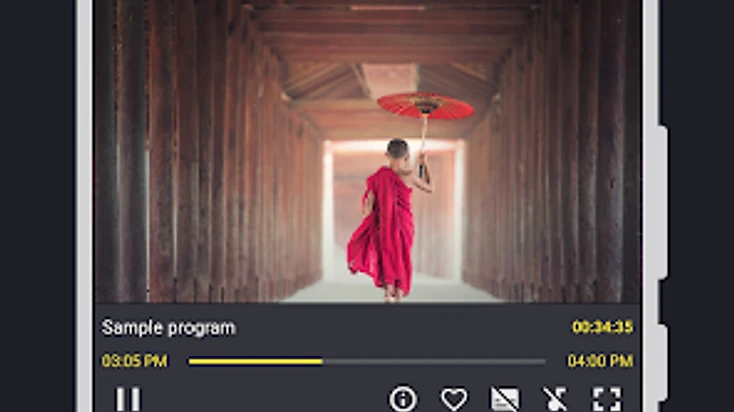
What Is IPTV and How Does It Work?
IPTV stands for Internet Protocol Television. Instead of receiving television through a cable, satellite dish, or antenna, IPTV delivers channels and on-demand content over your internet connection. You watch it on a compatible device — a smart TV, a streaming stick, a TV box, or a phone — using a player app that reads a playlist from your service.
To understand IPTV, it helps to see the system as three separate parts: the service that supplies the content, the player that loads and organizes it, and your device that renders the picture. Each part has a distinct role, and most confusion comes from mixing them up.
TV / Media Service
Supplies your playlist and channels
Playlist Data
An M3U URL or Xtream Codes credentials
Televizo Player
Loads, organizes and plays the content
Channels · Groups · EPG
An organized viewing interface
Your Device / TV
Renders the picture and sound
The key distinction for beginners: the player is software, not a channel bundle. Installing an app like Televizo Player does not give you television channels. You add a compatible playlist — your own, or one from a service you are authorized to use — and the player turns it into a browsable interface with channels, groups, and a program guide.
What You Need to Get Started
Setting up IPTV for the first time requires three things. None of them are complicated, but you need all three before you can watch anything.
1. A Compatible Device
You need a device that can run an IPTV player. Televizo Player runs on the Android ecosystem, which covers the most popular streaming platforms:
- Android TV and Google TV devices and televisions
- Amazon Fire TV and Firestick
- Android phones and tablets (Android 7.0 or newer)
- Smart TVs powered by Android TV or Google TV
2. A Playlist from Your Service
A playlist is the data that tells the player which channels and content to display. You receive it from your own television or media service, and it comes in one of two formats:
- M3U — a single URL that contains your full channel list. You paste it into the player once.
- Xtream Codes — a server address, username, and password. The player connects to the server and fetches your Live, Movies, and Series categories on demand.
You only use the format your service provides. If they give you one long URL, it is M3U. If they give you a server plus a username and password, it is Xtream Codes. There is no need to convert between them.
3. A Player App
The player is the software that loads your playlist, organizes your channels into groups, displays the program guide, and handles playback. Televizo Player is a free, lightweight player that supports both M3U and Xtream Codes and is built for remote-controlled TV viewing.
Once you have all three — a device, a playlist, and a player — you are ready to set up. The whole process takes only a few minutes.
Choosing an IPTV Player — Why Televizo
There are several IPTV players available for Android TV and Firestick, and most of them support the same basic playlist formats. What sets them apart is price, performance, ease of use, and the level of support available when you need help.
For beginners, Televizo Player is the easiest player to recommend for three reasons:
Free to Install and Use
Televizo Player is free to install from the Google Play Store. The core features — multiple playlists, EPG, favorites, channel groups, channel blocking, and grid and list layouts — are all available without paying. An optional Premium upgrade adds extra player features, but it is not required to use the app.
Built for TV and Remote Navigation
Televizo's interface is designed for a 10-foot TV viewing experience. The elements are large and focusable, the selected item is clearly highlighted, and navigation between Live, Movies, Series, and settings is logical with a standard remote. A player built for touchscreens first is frustrating on a TV; Televizo is built for the TV first.
Official Support and Setup Guides
Televizo is the only IPTV player with a dedicated official support website — this one. It includes step-by-step setup guides for every major device, a troubleshooting hub, a blog with detailed articles, and a contact form for direct support. When something goes wrong, you have a maintained resource instead of searching forum threads.
If you want to see how Televizo compares to other popular players feature by feature, the comparison page breaks it down side by side.
Compare IPT players →Step-by-Step: Install Televizo and Add Your First Playlist
Once you have a compatible device and a playlist from your service, the setup takes only a few minutes. Follow these steps in order.
- 1
Install Televizo Player
On Android TV, Google TV, and Android phones, install Televizo from the Google Play Store. On Fire TV and Firestick, use the free Downloader app to install the official APK. Always use the official store or the official download link — never unofficial APK mirrors.
- 2
Open the app
Launch Televizo from your app list or home screen. On first launch, you will see the option to add a playlist.
- 3
Choose Add Playlist
Select Add Playlist from the home screen. You will be asked to choose between M3U and Xtream Codes.
- 4
Select your format
If your service gave you a single URL, choose M3U. If they gave you a server address, username, and password, choose Xtream Codes.
- 5
Enter your details
For M3U, paste the full URL — make sure nothing is cut off at either end. For Xtream Codes, enter the server URL (including http:// or https://), username, and password exactly as provided. Double-check for typos and hidden spaces.
- 6
Save and wait
Save the playlist. Televizo connects to your source and loads your channels and groups. Large lists can take a few extra seconds to populate.
- 7
Browse and watch
Once loaded, open Live, Movies, or Series and select any channel or title to start playback. Set up favorites and hide channels you do not watch to tailor the guide to your habits.
For detailed, device-specific installation instructions with screenshots and troubleshooting, use the dedicated setup guides.
If you do not yet have a compatible TV service, you can explore optional subscription plans that work with Televizo Player and other compatible players.
View compatible TV service plans →Troubleshooting Your First Setup
Most first-setup problems fall into a small set of causes, and none of them mean the player is broken. Work through this list before anything else — it resolves the vast majority of beginner issues.
| Problem | Most likely cause | Quick fix |
|---|---|---|
| Playlist will not load | Typo in the URL or credentials, or expired service | Re-enter details carefully; confirm your subscription is active; reload the playlist |
| Invalid credentials error | Wrong server, username, or password | Copy each value fresh from your provider and re-enter; check for hidden spaces |
| Channels missing | Source has not fully loaded, or provider category issue | Wait for the full list to load; refresh the playlist; try another category |
| Buffering or stuttering | Slow or unstable internet connection | Restart your router; move closer to Wi-Fi or use Ethernet; stop heavy downloads |
| EPG (TV guide) is empty | Your playlist has no EPG source | Refresh the EPG in settings; confirm with your provider that they supply guide data |
| App will not open | Outdated app or low device storage | Restart the device; check for an update; clear the app cache in device settings |
A good first step for almost any issue is to reload the playlist and restart the app. If some channels work and others do not, the player is functioning and the failing streams are a source issue — not a problem with your setup.
For a full diagnostic walkthrough covering every common issue in detail, the troubleshooting guide breaks down each problem by source — app, device, network, or playlist.
Read the complete troubleshooting guide →If you are still stuck after working through the steps above, the support team can help directly.
Contact Televizo support →IPTV Setup for Beginners — FAQ
These are the questions beginners ask most often when setting up IPTV for the first time, with direct answers.
Ready to Start?
Setting up IPTV for the first time is simpler than it seems. Install a compatible player, add your playlist, and start watching. The whole process takes a few minutes once you have your credentials ready.
Here are the best next steps depending on where you are in the process:
Televizo Editorial Team
Product Documentation & Support
The Televizo Editorial Team writes and maintains the official documentation for Televizo Player. We test every guide on real Android TV, Fire TV, Google TV and Smart TV hardware using both M3U and Xtream Codes playlists, and we update articles whenever the app or setup steps change.
Published 7 Oct 2026 · Last updated 7 Oct 2026 · Reviewed for accuracy 7 Oct 2026
Related Televizo Guides
Ready to get started?
Install Televizo, add your playlist, or get help from our support team.