
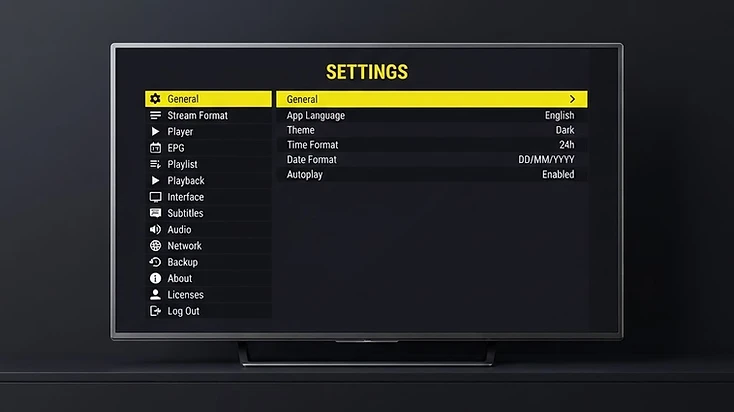
Televizo Player Not Working? Try These Checks First
Most Televizo Player issues can be narrowed down in a few minutes. Before reading further, work through this short diagnostic sequence. Each step isolates one of the four possible problem sources — the app, the device, the network, or the playlist — so you avoid changing settings that are not actually the cause.
- 1
Confirm your device has internet
Open another app or website that uses the network. If nothing loads, the issue is your connection, not Televizo.
- 2
Close and reopen Televizo
Fully close the app — not just minimize it — and open it again. A stuck process is a common cause of odd behavior.
- 3
Restart the device
Power-cycle your TV, stick, or phone. This clears memory and network state and resolves many temporary glitches.
- 4
Refresh the playlist
Open playlist management and reload the source. This pulls fresh channel and guide data and clears stale cached lists.
- 5
Verify your playlist credentials
Re-enter the URL or username and password carefully. A single typo or pasted space will stop a playlist from loading.
- 6
Test more than one channel
Try several channels in different groups. If some work, the player is functioning and the failing streams are a source issue.
- 7
Try the playlist on another device
If you can, load the same playlist on a second compatible device. If it works there, the problem is specific to the first device or its network.
- 8
Check for a Televizo update
Install the latest version from the official store or download link. Updates include bug fixes and compatibility improvements.
- 9
Decide whether it is the app or the source
If the issue affects every playlist and every channel, look at the app or network. If it affects only some content, the source is likely responsible.
- 10
Contact the right support
If the steps above do not resolve it, contact Televizo for app issues, your provider for account and channel issues, or your device/network support for connection problems.
Televizo app
Crashes, missing UI options, or bugs that appear across every valid playlist.
Device
Low storage, outdated system software, or hardware that struggles with playback.
Network
Slow, unstable, or congested internet, DNS issues, or weak Wi-Fi at the TV.
Playlist source
Expired accounts, invalid credentials, offline channels, or missing EPG data.
Keep this four-source model in mind throughout the guide. Almost every Televizo problem maps to one of them, and identifying the right one is the fastest way to a fix — and to the right support channel when you need help.
New to the application? Start with our complete Televizo Player guide for installation, features and configuration, then come back here when you need to diagnose a problem.
Read the complete Televizo Player guide →What to Do If Televizo Player Won't Open
If Televizo Player will not open, the cause is almost always the app build, the device state, or available storage — not your playlist. Work through these steps in order before considering anything more drastic.
- Force-close the app completely from your device's app switcher or settings, then open it again.
- Restart the device. A power cycle clears memory and resolves many one-time launch failures.
- Check available storage. Very low storage can prevent the app from opening or updating.
- Install the latest Televizo update from the official store or download link.
- Clear the app cache in your device settings (this is safe and does not remove your playlists).
The difference matters: clearing the cache removes temporary files and is safe to try first. Clearing data resets the app to a fresh state and will require you to re-add your playlist. Reinstalling the app is a later step — see the dedicated section on reinstallation before you go that far.
If the app still will not open after a restart, an update, and a cache clear, note any error message you see and contact Televizo support with those details.
Contact Televizo support →How to Fix a Televizo Playlist That Won't Load
A playlist that will not load is one of the most common Televizo issues, and the cause is usually on the source or network side rather than the app. Check these possibilities in order.
- The playlist URL or credentials contain a typo or an extra pasted space.
- The subscription or service linked to the playlist has expired.
- The playlist server is temporarily unavailable or under load.
- Your internet connection is slow, unstable, or blocked by DNS or carrier settings.
- The URL format is invalid — for example, it is missing the http:// or https:// prefix.
- The playlist was replaced or rotated by the provider and the old link no longer works.
- Televizo needs a refresh to pull the latest version of a recently changed playlist.
A practical sequence: re-enter the details carefully, confirm your subscription is active, test your connection, reload the playlist, and if possible test the same link on another compatible device. If the link works elsewhere, the issue is specific to the first device or its network.
For the full walkthrough on adding and reloading a playlist, see the setup guides for each format.
Why Does Televizo Say My Credentials Are Invalid?
An invalid credentials error means the values Televizo sent were rejected by the source. It does not necessarily mean your account is gone — most often it is a formatting or copy-paste issue.
- A mistyped username or password, including hidden trailing spaces.
- The wrong server URL, or a URL missing its http:// or https:// prefix.
- Credentials that were changed or reset by the provider.
- A subscription that has expired or been paused.
- An account that was locked or disabled by the provider.
- Using an M3U link where Xtream Codes was expected, or the reverse.
Copy each value fresh directly from your provider's email or panel, paste it carefully, and double-check the server address. If the values are correct and the error persists, confirm with your provider that the account is active and the server is reachable.
Why Are Channels Not Playing in Televizo?
Channels not playing is a broad symptom, so it helps to split it into cases. The pattern of what works and what does not tells you a lot about where the problem lives.
No channels work
If no channel plays at all, check your network connection and confirm the service is active. Test the same playlist on another device if you can. If nothing plays on any device, the source may be down or your account may have an issue; if it works elsewhere, look at the first device's network or app version.
Only one channel does not work
A single failing channel usually means that specific stream is down on the source side. Try a few other channels in the same group — if they play, the player is fine and the one channel is a provider content issue.
One category does not work
If an entire category — such as all live channels, or all movies — fails while others play, it can indicate a source or category data issue rather than the app. Refreshing the playlist sometimes helps; if it persists, contact your provider about that category.
Live TV fails but other content works
When live channels fail but movies or series play, the difference often points to the live source specifically. This pattern helps isolate the issue to one part of the source rather than the whole playlist or the app.
Use wording like often, may, or can indicate rather than assuming every environment behaves identically. Stream availability depends on the source, and the same symptom can have different causes for different providers.
How to Fix Buffering or Freezing in Televizo Player
Buffering and freezing are usually related to one of three things: the network, the device, or the source stream. The goal is to find which one, rather than changing app settings at random.
The main variables that affect playback smoothness:
- Internet speed and the stability of the connection, not just the headline number.
- Wi-Fi signal strength and router congestion from other devices.
- Device performance — available memory and CPU for decoding video.
- The quality and bitrate of the source stream itself.
- Server load on the playlist source during peak viewing times.
- Background downloads or updates using the same connection.
- Available storage on the device, which can affect app performance.
Work through this sequence to isolate the cause:
- Test another channel. If only one stream buffers, that source is likely the issue.
- Test the same playlist on another device on the same network.
- Restart your router and wait a minute before reconnecting.
- Move closer to your Wi-Fi access point, or switch to a wired Ethernet connection where available.
- Stop heavy downloads, cloud backups, or large updates on the same network.
- Restart the device to free memory and clear temporary state.
- If possible, test the playlist on a different network to rule out your connection.
If buffering continues across every channel and every network you test, the app or device may be worth a closer look. If it follows one specific stream or source, that source is the likely cause.
How to Fix EPG Problems in Televizo
EPG stands for Electronic Program Guide — the on-screen TV guide that shows what is on now and what is coming next. In Televizo, the guide appears when your playlist includes an EPG source. Most EPG problems are source-side, not app-side.
| EPG problem | Possible cause | Suggested action |
|---|---|---|
| EPG completely missing | The playlist has no EPG source attached | Ask your provider to confirm whether they supply an EPG URL |
| Some channels have no guide | The provider supplies guide data for some channels only | Contact your provider; Televizo can only show what the source delivers |
| Guide data is outdated | The EPG has not refreshed recently | Refresh the EPG in settings and allow time for the update |
| Program times are wrong | Time-zone mismatch in the source data | Check your device time zone is correct, then refresh the EPG |
| Guide worked before but is now empty | The provider reset the EPG source or the playlist changed | Reload the playlist and refresh the EPG; contact your provider if it persists |
Televizo can display guide information supplied and configured through compatible sources, but it cannot create missing broadcaster or program data that the source does not provide. If the guide is empty after a refresh, the first question is whether your provider includes an EPG source at all.
Read the full EPG configuration guide →Televizo M3U Playlist Not Working
An M3U playlist is a single URL or file that contains your full channel list. When it stops working, the cause is usually the link itself, the source server, or your network — not the app.
- The URL is broken, truncated, or missing a prefix such as http:// or https://.
- The link has expired or been rotated by the provider.
- The wrong URL was pasted, or a different playlist's link was used by mistake.
- The source server is temporarily unavailable or under heavy load.
- The playlist file format is invalid or not supported as provided.
- A network or DNS issue is blocking access to the source.
- A redirect or authentication step in the link is failing.
Copy the URL fresh from your provider, paste it carefully, confirm your connection works, and reload the playlist. If the same link works on another device, the issue is specific to the first device or its network.
For the complete walkthrough — adding, reloading, and fixing an M3U playlist — see the dedicated setup guide. This article focuses on diagnosis; the full steps live there.
Complete Televizo M3U setup guide →Televizo Xtream Codes Not Working
Xtream Codes uses three values instead of one long URL: a server URL, a username, and a password. When it stops working, one of those values or the server itself is usually the cause.
- The server address is incorrect or missing its http:// or https:// prefix.
- An HTTP versus HTTPS discrepancy — the server expects one and you entered the other.
- A typo in the username or password, including hidden spaces.
- The account has expired or the subscription has lapsed.
- The service is temporarily unavailable or the server is down.
- A connection or device problem is blocking access to the server.
Re-enter the server URL, username, and password exactly as provided, confirm the account is active, and reload the playlist. If it still fails, test on another device and contact your provider to confirm the server is reachable.
For the full setup walkthrough, see the dedicated Xtream Codes guide. This article handles diagnosis; the complete steps are there.
Televizo Xtream Codes setup guide →How to Fix Audio or Video Problems
Audio and video problems can be caused by the source stream, the device's decoder or output settings, or occasionally the app. Compare channels and devices to narrow it down.
- Sound but a black screen — the stream may be sending audio only, or the device may not decode that video format.
- Picture but no sound — the audio format may not be supported by your device or output setup.
- Audio out of sync — usually a source encoding issue; test another channel to confirm.
- Stream will not start — the source may be down, or the link is invalid.
- Stuttering — often network, device resources, or a high-bitrate source stream.
Test the same channel on another device if you can. If the problem follows the channel, it is a source issue; if it follows the device, look at decoder support, audio output settings, and available resources. Avoid claiming specific codec support unless you have confirmed it for your exact device and source.
If the problem appears across every channel and every source on one device, updating the app and the device system software, and checking audio output settings, are sensible next steps before contacting support.
Televizo Works on One Device but Not Another
When the same playlist works on one device but fails on another, that difference is a useful diagnostic signal. It usually points to the device or its network rather than the playlist or the app overall.
Compare these factors on both devices:
- App version — one device may be on an older build with a known issue.
- Device compatibility — supported platform and Android version.
- Network connection — Wi-Fi strength, wired vs. wireless, or a different network entirely.
- Device resources — available memory and storage for playback.
- Stored app configuration — a stale or corrupted playlist entry on one device.
- System software — an outdated device OS or firmware.
- DNS or network configuration — different DNS or carrier settings on each device.
Update the app on both devices, test on the same network, and re-add the playlist on the failing device. For platform-specific steps, use the relevant setup guide.
How to Refresh a Playlist in Televizo
Refreshing a playlist pulls the latest channels and guide data from your source. It helps when channels have changed, the EPG is stale, the playlist was edited, or temporary data is causing problems.
In Televizo, open the playlist management screen, select the playlist you want to update, and choose the refresh or reload option. The app reconnects to the source and replaces the cached list with the current one. Large playlists can take a few extra seconds to reload.

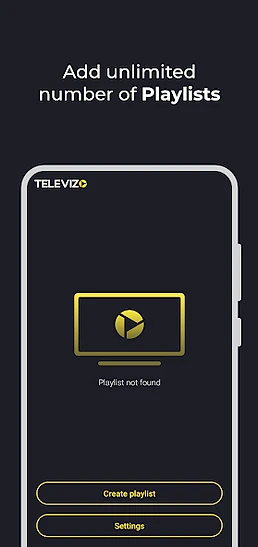
Refresh when something has actually changed — new channels, an updated guide, or a playlist edit. You do not need to refresh constantly; a healthy playlist loads and updates without repeated manual reloads.
How to Check for Televizo Player Updates
Keeping Televizo updated can resolve bugs, improve device compatibility, add performance fixes, and introduce new features. An outdated build is a common cause of problems that disappear after an update.
- If you installed from the Google Play Store, enable auto-update or check for updates in the store on your device.
- If you sideloaded the APK, download the latest official version and install it over the existing app.
- Always use the official store or the official download link on this website.
After updating, restart the app and reload your playlist to make sure the new build is working with your current source.
Get Televizo Player from the official source →Should You Reinstall Televizo Player?
Reinstallation should generally be a later troubleshooting step, not the first one. Most issues are resolved by restarting the app, updating, or clearing the cache — none of which touch your saved playlists.
Reinstalling can help when the app is corrupted or an update did not apply cleanly, but it comes with a cost: uninstalling may remove locally stored settings, including your saved playlists, so you will need to configure them again.
Before you reinstall:
- Record your playlist configuration securely — the URL or server, username, and password.
- Confirm your credentials are still valid and active with your provider.
- Try a restart, an update, and a cache clear first.
If reinstalling is necessary, install the official version from the Google Play Store or the official download link, then re-add your playlist.
Should You Contact Televizo or Your TV Service Provider?
One of the most useful distinctions in this guide is knowing who to contact. Televizo Player is the app; your provider supplies the playlist and channels; your device and network carry the connection. Each problem type belongs to a different support path.
| Contact Televizo for | Contact your playlist / TV provider for | Contact device / network support for |
|---|---|---|
| App crashes or will not open | Expired account or subscription | Wi-Fi or wired connection problems |
| UI issues or missing app options | Invalid or changed credentials | Device crashes or storage problems |
| A confirmed application bug | Missing channels from the source | System-level network configuration |
| A feature malfunction across multiple valid playlists | Specific channels offline | Router or access-point issues |
| App-specific playback problems | Playlist server unavailable | Slow or unstable internet service |
| Missing EPG option in app settings | Missing source-provided EPG data | Device software or firmware problems |
For a full explanation of where EPG data comes from and why it can be missing or incorrect, see the dedicated Televizo EPG guide.
Read the Televizo EPG guide →If you are unsure, the quick checks earlier in this guide help you identify whether the issue is the app, the device, the network, or the playlist source. That answer tells you which support path is the right one — and saves time on all sides.
Televizo Player Troubleshooting FAQ
These are the questions users ask most often when Televizo Player is not working, with direct answers. Each answer stands on its own, so you can read only what you need.
Still Having Problems With Televizo?
If the diagnostic steps above did not solve the problem, identify which of the four sources is affected — the app, the device, the network, or the playlist service. That single answer points you to the right next step and the right support channel.
If the issue affects the app across every playlist and device, contact Televizo. If it affects your account, credentials, or specific channels, contact your provider. If it is a connection or hardware issue, your device or network support is the right path.
Televizo Support Team
Product Documentation & Troubleshooting
The Televizo Support Team creates product documentation and troubleshooting resources based on the Televizo Player application and common user support scenarios. We separate problems caused by the app, the device, the network and the playlist source so you can reach the right fix — and the right support — faster.
Published 15 Sep 2026 · Last updated 15 Sep 2026 · Reviewed for accuracy 15 Sep 2026
Related Televizo Guides
Ready to get started?
Install Televizo, add your playlist, or get help from our support team.