
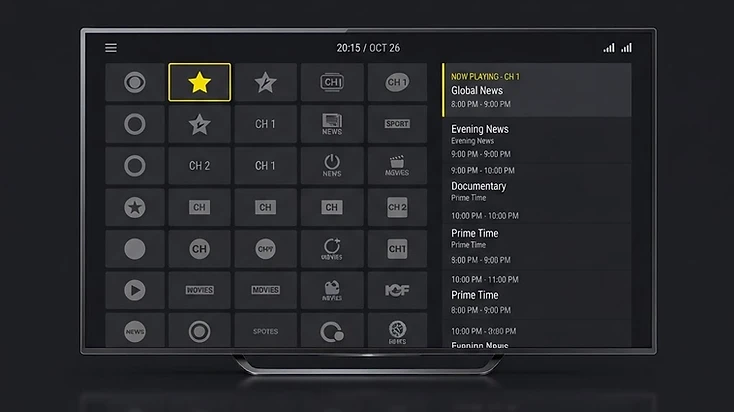
What Is Televizo Player?
Televizo Player is a media playlist player for Android, Android TV, Fire TV, Google TV and Android-based Smart TVs. It reads M3U playlists and Xtream Codes credentials you provide and organizes your live TV, movies and series into a clean, fast interface. The application itself does not include any channels — you add your own compatible playlist to watch.
A playlist player is software that plays sources you point it to, much like a web browser opens pages you choose. Televizo is built for people who already have a playlist — their own, or one from a compatible subscription service — and want a dependable, well-organized way to watch it on a TV or mobile device.
The distinction matters: Televizo Player is a player, not a content provider. Installing the app does not give you television channels. You bring the playlist; Televizo brings the interface, the playback and the organization tools.
| Detail | Value |
|---|---|
| Product | Televizo Player |
| Category | Media / IPTV playlist player |
| Primary purpose | Play and organize compatible playlists |
| Supported playlist methods | M3U playlists, Xtream Codes API |
| Supported devices | Android, Android TV, Google TV, Fire TV / Firestick, Android-based Smart TVs |
| Price | Free to install; optional Premium upgrade |
| Official website | TelevizoPlayer.com |
How Does Televizo Player Work?
Televizo works by reading a playlist you add to it. The player connects to the source you provide, loads your channel and content list, and presents everything in an interface organized by Live, Movies and Series. You do not sign up for channels inside Televizo — you add a playlist once, and the player takes care of browsing and playback.
- 1
Install Televizo Player
Get the app from the Google Play Store on a supported device, or install the official APK.
- 2
Open the application
Launch Televizo from your app list or home screen.
- 3
Add compatible playlist information
Choose Add Playlist and enter an M3U URL or Xtream Codes server, username and password.
- 4
Allow the playlist to load
Televizo connects to your source and loads your channel groups and categories.
- 5
Browse the content
Open Live, Movies or Series and select anything to play.
- 6
Configure preferences
Set up favorites, refresh the EPG, and customize your channel list to suit how you watch.
Once a playlist is loaded, Televizo behaves like any other media player: you browse, you select, and it plays. The player remembers your playlist, so you only enter your details once unless you change provider or add another playlist.
Televizo Player Features
Televizo focuses on a small, practical set of features that make daily viewing smoother. Each one is designed to keep your content organized and quick to reach on a remote-controlled TV. Below are the core features, shown with the real Televizo Player interface.
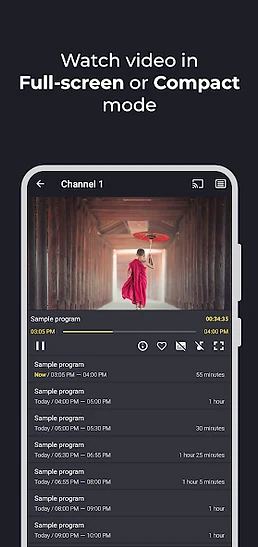
Full-Screen and Compact Viewing
Televizo lets you watch in full screen for an immersive view, or in a compact mode that keeps playback visible while you browse the guide. On a large TV, full screen is the default for movies and series; compact mode is useful when you are scanning channels and want to keep an eye on what is playing.

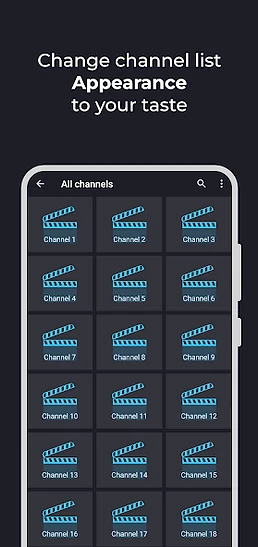
Customize the Channel List
Your channel list can be displayed as a grid or a list, so you choose the layout that fits your screen and the way you browse. A grid shows more channels at once; a list is easier to read at a distance. You can switch between them in the player settings.

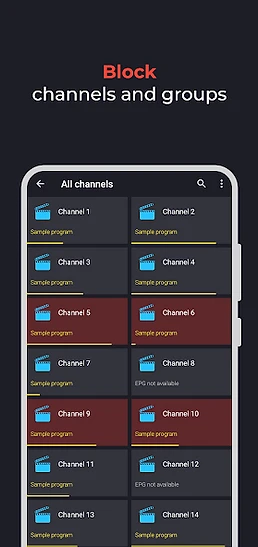
Block Channels and Groups
Not every channel in a large playlist is one you watch. Televizo lets you hide individual channels or entire groups, so your guide stays focused on the content you care about. Blocked channels are not deleted — they are simply hidden from your view, and you can restore them anytime.

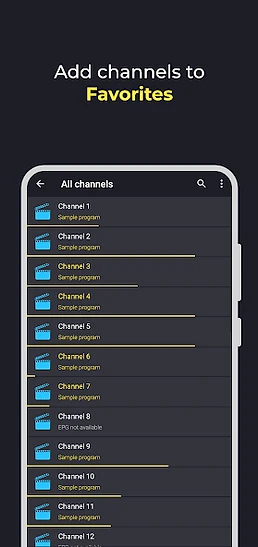
Add Channels to Favorites
Favorites pin the channels you watch most to the top of your list. Instead of scrolling through hundreds of channels every time, you mark a channel once and jump straight to it from the Favorites view. This is one of the most useful features for daily viewing.

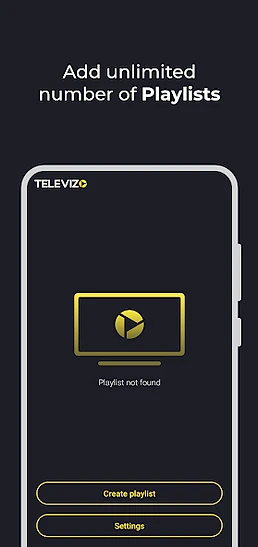
Use Multiple Playlists
Televizo supports multiple playlists. You can add several M3U or Xtream Codes sources and switch between them from the player. This is handy if you keep separate sources for live TV and movies, or if you test a new service alongside your existing one.

What Devices Support Televizo Player?
Televizo Player runs on Android-based devices. Because the app is built for the Android ecosystem, it works on phones, tablets, TV boxes and sticks, and smart televisions powered by Android TV or Google TV.
- Android phones and tablets (Android 7.0 or newer)
- Android TV devices and televisions
- Google TV devices and televisions, including Chromecast with Google TV
- Amazon Fire TV and Firestick
- Smart TVs powered by Android TV or Google TV
For full installation steps on each platform, follow the dedicated setup guide:
How to Install Televizo Player
On Android TV, Google TV and Android phones, install Televizo from the Google Play Store. On Fire TV and Firestick, the app is not in the Amazon Appstore, so you install the official APK using the free Downloader app. Each platform takes only a few minutes.
This pillar page summarizes the essentials. For complete, step-by-step instructions with troubleshooting, use the dedicated guides below.
How to Add a Playlist to Televizo
To add a playlist, open Televizo, choose Add Playlist, and select either M3U or Xtream Codes. Enter your URL or credentials, give the playlist a name, and save. Televizo connects to your source and loads your channel groups and content categories.
You need valid, compatible playlist information from your own provider or service. Televizo does not supply playlists, and you should only add content you have the right to access. Never share your private credentials — Televizo stores them on your device for playback only.
After saving, you can refresh a playlist to pull updates, rename it, or remove it and add a new one if you change provider. The two supported formats are covered in detail below.
How to Add an M3U Playlist to Televizo
An M3U playlist is a single URL or file that contains your full channel list. To add one in Televizo, open the app, choose Add Playlist, select M3U, paste your playlist URL (or load a .m3u file), and save. Your channels and groups appear once the list loads.
- 1
Open Televizo
Launch the app and choose Add Playlist from the home screen.
- 2
Select M3U
Choose the M3U option as the playlist type.
- 3
Paste the URL
Paste your full M3U link, making sure nothing is cut off at the start or end.
- 4
Save and load
Save the playlist. Televizo downloads the list and your channels and groups appear. Large lists can take a few extra seconds.
For the full walkthrough with troubleshooting, read the complete Televizo M3U setup guide.
Read the complete Televizo M3U setup guide →How to Configure Xtream Codes in Televizo
Xtream Codes is a server API that uses three values instead of one long URL: a server URL, a username and a password. To add it in Televizo, open the app, choose Add Playlist, select Xtream Codes, enter the three values exactly as provided, and save. Televizo connects and loads your Live, Movies and Series categories.
- 1
Open Televizo
Launch the app and choose Add Playlist.
- 2
Select Xtream Codes
Choose the Xtream Codes option — not M3U.
- 3
Enter credentials
Enter the server URL (including http:// or https://), your username and your password. Double-check each value for typos.
- 4
Save and load
Save the playlist. Televizo fetches your categories from the server. Large libraries may take a few seconds.
For the full walkthrough, read the complete Televizo Xtream Codes setup guide.
Complete Televizo Xtream Codes setup guide →How Does EPG Work in Televizo?
EPG stands for Electronic Program Guide. It is the on-screen TV guide that shows what is on now and what is coming next for each channel. In Televizo, the EPG appears automatically when your playlist includes an EPG source — you do not configure it manually beyond a refresh.
If your guide is populated, you can refresh it in Settings → EPG and set how often it updates. If the guide is empty or incomplete, the cause is almost always on the playlist side, not the player.
| Situation | Most likely cause | What to do |
|---|---|---|
| EPG does not appear at all | Your playlist has no EPG source | Ask your provider to confirm whether they supply an EPG URL |
| Guide information is incomplete | Provider supplies partial data for some channels only | Contact your provider; Televizo can only show what the source delivers |
| EPG times are wrong | Time-zone mismatch in the source data | Check your device time zone is set correctly, then refresh the EPG |
| Guide worked before but is now empty | Provider reset the EPG source or your playlist changed | Reload the playlist and refresh the EPG; contact your provider if it persists |
Televizo is not responsible for missing guide data. EPG availability depends entirely on what your playlist provider delivers. For the full guide, see how to configure EPG in Televizo.
Read the full EPG configuration guide →How to Organize Favorites and Channels
Once your playlist is loaded, the features that make daily viewing comfortable are the organization tools. Televizo gives you several ways to keep a large channel list manageable.
- Favorites: pin your most-watched channels for one-tap access from the Favorites view.
- Channel groups: your channels are organized into groups automatically, so you can jump to a category instead of scrolling one long list.
- Channel and group blocking: hide channels or entire groups you never watch so they do not clutter your guide.
- Channel list customization: switch between grid and list layouts to suit your screen and browsing style.
- Multiple playlists: keep more than one source and switch between them without re-entering credentials.
Together these turn a playlist of hundreds of channels into a short, focused list of what you actually watch. None of these features change your playlist — they only change how Televizo displays it for you.
Common Televizo Player Problems and How to Fix Them
Most problems in Televizo come down to one of three things: incorrect playlist details, an issue with your provider's service, or a network problem. The player is rarely the cause. Use the table below to diagnose the most common situations before contacting support.
| Problem | Most likely cause | Quick fix | When to contact your provider | When to contact Televizo support |
|---|---|---|---|---|
| Playlist not loading | Typo in URL or credentials, or expired service | Re-enter details carefully; confirm your subscription is active; reload the playlist | If details are correct and the service should be active | If the app crashes while loading |
| Invalid playlist credentials | Wrong server, username or password | Copy each value fresh from your provider and re-enter it | If credentials are correct but rejected | Not applicable — this is a provider account issue |
| Channels not opening | Individual stream is down, or provider source issue | Try another channel first to test the player; refresh the playlist | If many channels fail at once or only some work | If no channels play at all and the app seems broken |
| Buffering or stuttering | Slow or unstable internet connection | Use Ethernet where possible, move closer to the router, lower stream quality in settings | If your speed is good but a specific stream always buffers | If playback stutters across every channel and source |
| EPG not appearing | Playlist has no EPG source | Refresh the EPG in Settings → EPG | To confirm whether they supply an EPG URL | If the EPG option is missing from settings entirely |
| Incorrect EPG time | Time-zone mismatch in source data | Check your device time zone is correct, then refresh the EPG | If times are consistently off across all channels | Not applicable — this is source data |
| App needs a refresh after changing playlist | Cached data from the old playlist | Reload the playlist or restart the app | Not applicable | If the app will not load a new playlist at all |
| Problems after changing provider | Old credentials still cached | Remove the old playlist, add the new one, and reload | If the new provider says activation is complete but it fails | If the app crashes when switching playlists |
| Network-related problems | Weak Wi-Fi, DNS or carrier blocking | Restart your router, try a wired connection, or switch networks | If a specific server is blocked by your carrier | If the app cannot connect on any network |
| App or cache problems | Outdated app or corrupted cache | Update to the latest version; clear the app cache in device settings | Not applicable | If problems persist after updating and clearing cache |
A good first step for almost any issue is to reload the playlist and restart the app. If only some channels fail, the player is working and the source is the issue. If nothing plays across every channel and every playlist, then the problem is worth a closer look.
For everything about how the TV guide works — where the data comes from, why it can be missing, and why program times can be wrong — see the dedicated Televizo EPG guide.
Read the Televizo EPG guide →For a deeper dive, read the dedicated playlist troubleshooting guide.
Read the playlist troubleshooting guide →For a full problem-solving walkthrough, see the complete Televizo Player troubleshooting guide.
Read the complete troubleshooting guide →Televizo Player FAQ
These are the questions users ask most often about Televizo Player, with direct answers. Each answer stands on its own, so you can read only what you need.
Final Thoughts
Televizo Player is a focused, dependable playlist player. You install it, add a compatible M3U or Xtream Codes playlist, and watch your live TV, movies and series in a clean interface with favorites, groups, blocking and an EPG when your provider includes one. The app is the player; the playlist is yours.
If you are just getting started, the fastest path is to install the app on your device, add your playlist, and use the organization features to tailor the guide to what you actually watch. The resources below point you to the right next step.
Ready to Get Started?
Televizo Editorial Team
Product Documentation & Support
The Televizo Editorial Team writes and maintains the official documentation for Televizo Player. We test every guide on real Android TV, Fire TV, Google TV and Smart TV hardware using both M3U and Xtream Codes playlists, and we update articles whenever the app or setup steps change.
Published 14 Sep 2026 · Last updated 14 Sep 2026 · Reviewed for accuracy 14 Sep 2026
Related Televizo Guides
Read next
Ready to get started?
Install Televizo, add your playlist, or get help from our support team.