
What Is EPG?
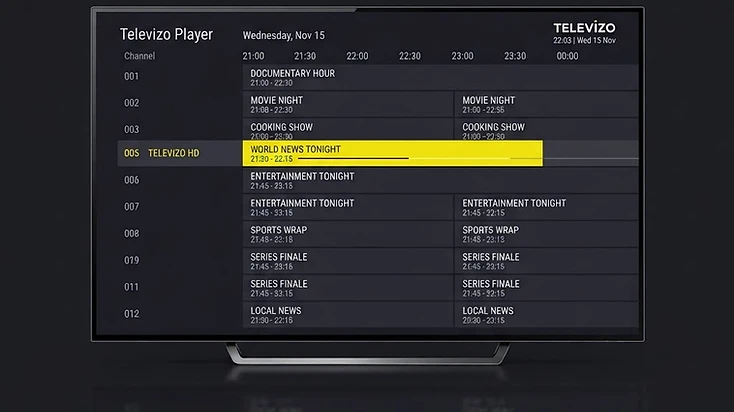
EPG stands for Electronic Program Guide. It is schedule metadata — structured information about what is playing on a channel and what is scheduled next. In Televizo Player, EPG lets you see a channel's current program, upcoming programs, and their start and end times without leaving the guide.
An Electronic Program Guide is not the same as the video stream itself. The stream is what you watch; the EPG is the descriptive layer that tells you what is on, what just finished, and what is coming up. Think of it as the TV-guide page adapted to a modern player interface.
Typical information an EPG can include: the current program title, the next program title, start and end times, and a schedule of upcoming programs for a channel. Which of these you actually see depends on what the source supplies and what Televizo displays for that channel.
How Does EPG Work in Televizo Player?
In Televizo, EPG works by reading guide data that comes through your connected playlist or service and mapping it to your channels. The player is the interface layer — it organizes and displays the guide, but it does not generate the schedule information on its own.
The high-level process looks like this:
- A playlist or service contains or references channel information.
- EPG data is supplied automatically with the playlist, or separately through a configured EPG source, depending on your setup.
- Televizo reads the supported guide information.
- The application maps guide entries to the matching channels.
- Program information appears in the interface — current program, upcoming programs, and times.
- Updates can occur when the playlist or guide data refreshes.
The important distinction is between displaying and creating. Televizo displays and arranges guide data it can read; the existence and accuracy of that data depends on the source that supplies it.
Playlist / TV service
Televizo Player
Channel + program info
You
Where Does Televizo Get EPG Data?
Televizo is the player — the interface that organizes and displays content. The guide data itself comes from outside the player, through the source you connect.
Depending on your setup, EPG data may come from:
- The playlist service, which can deliver guide data alongside the channel list.
- A linked or configured EPG source, such as an XMLTV-style guide URL, where supported.
- A service API that provides channel and guide information together.
- Another compatible configuration your service supplies.
The exact method depends on the playlist type and what your provider gives you. What matters is one principle: Televizo cannot independently create schedule information for a broadcaster if no source provides it. If the guide is empty, the first place to look is the source, not the player.
What Information Can EPG Show?
When guide data is available and matched to a channel, Televizo can display schedule information that helps you find what to watch without tuning in blind.
- Current program — the title playing on a channel right now.
- Next program — the title scheduled to follow.
- Start and end times — when the current and upcoming programs begin and finish.
- Upcoming schedule — a list of later programs for the channel.
- A timeline or progress indicator showing how far through the current program you are.
Not every channel shows every field. A channel may display a current and next program but no further schedule, or a full upcoming list. The depth of information reflects what the source provides for that channel.

How Does EPG Work With an M3U Playlist?
An M3U playlist primarily describes your channels and stream endpoints in a single list. It is a playlist format, not a guarantee of guide data. Whether EPG is available with an M3U playlist depends on what the service embeds or references.
With M3U, guide data may be embedded in the playlist itself or delivered as a separate EPG URL that the service provides alongside the channel list. Some M3U sources include guide information; others include only channels. An empty guide with an M3U playlist usually means the source supplies no EPG, not that the format is wrong.
This is a conceptual overview. For the step-by-step setup of an M3U source, see the dedicated setup guide.
M3U playlist setup guide →To understand how M3U compares to the other connection method, read the playlist comparison.
Compare M3U vs Xtream Codes →How Does EPG Work With Xtream Codes in Televizo?
Xtream Codes is a server-style connection: instead of one URL, you enter a server address, username, and password. Because the server organizes content into Live, Movies, and Series, it can also deliver guide information through the same account API.
Structured service APIs often provide channel and guide information together, which can make EPG feel more automatic with an Xtream-style account. But this is not a guarantee — guide availability still depends on whether the service actually supplies EPG data for its channels. Two Xtream-style services can behave differently.
As with M3U, an empty guide points to the source first. The connection method determines how data is delivered, not whether the data exists.
Xtream Codes setup guide →Compare M3U vs Xtream Codes →How Does Televizo Match EPG Data to Channels?
For a guide to appear, the player needs a relationship between each channel and its guide entry. A channel exists in your playlist; a guide entry exists in the EPG data. The player matches the two so that the right schedule appears under the right channel.
This matching usually relies on identifiers the source provides — channel IDs, names, or service-supplied metadata that links a channel to its schedule. When that link is present and the data exists, the guide populates. When it is missing, the channel can still appear and play, but its guide stays empty.
This is why a channel can exist but have no EPG: the channel is in your playlist, but no guide entry maps to it. That is a source or mapping gap, not necessarily a player failure. It is also why some channels have a full guide while others show nothing — coverage depends on which channels the source provides guide data for.
How to Refresh EPG in Televizo Player
Refreshing EPG asks the player to reload guide data from the source. It is useful when the source has recently changed — new channels added, schedule updated, or guide data that had not finished loading.
At a concept level, refreshing involves opening the playlist or EPG management area in Televizo and using the refresh or reload option for the guide. In Televizo's EPG settings you can refresh the guide and, where supported, set how often it updates. The exact labels can vary by app version, so look for the refresh or reload action in the EPG or playlist management screen.

Refreshing helps when valid guide data exists and simply has not been loaded yet. It does not help when the source provides no EPG at all — a refresh cannot create data that the source does not supply. If the guide is empty after a refresh, the next step is to confirm whether your service actually includes EPG.
Why Is EPG Missing in Televizo?
Missing EPG is one of the most common questions, and the answer is usually about the source, not the app. The guide is empty when no guide data is supplied or matched for the channel.
- The service does not provide guide data for that channel or at all.
- The channel has no matching guide entry in the EPG source.
- The configured EPG source is unavailable or unreachable.
- Guide data has not been refreshed since the source changed.
- A playlist or provider mapping issue prevents the match.
- An EPG source was never configured for a playlist that needs one.
- Source data is temporarily unavailable.
- In rare cases, an app or device issue interferes with loading.
Use this table to narrow down the most likely cause before changing anything.
| Symptom | Likely cause | First thing to check | Who controls it? |
|---|---|---|---|
| No channels have EPG | Service supplies no guide data, or no EPG source is configured | Confirm with your provider whether EPG is included | TV / playlist provider |
| Only some channels have EPG | Guide coverage varies by channel; some have no matching entry | Check whether the same channels have EPG on another device | TV / playlist provider |
| EPG disappeared suddenly | Source changed, account changed, or guide data stopped updating | Refresh the playlist and guide, then confirm the account is active | TV / playlist provider |
| EPG shows old data | Source not refreshed, or provider sending stale schedule | Refresh the guide; confirm the source is current | TV / playlist provider |
| EPG loads slowly | Large guide source or slow connection during refresh | Wait for the refresh to finish; refresh again later | Network / device |
| EPG option missing from settings | App version too old or a player-specific issue | Update Televizo to the latest version | Televizo |
Why Is the EPG Time Wrong in Televizo?
When the guide shows the right programs but the times are off, the cause is usually timezone alignment or source-data configuration — not the stream itself.
Possible causes include:
- The device timezone is set incorrectly, so displayed times do not match your local time.
- A timezone offset between the source data and your device.
- Source data delivered in a different timezone than expected.
- Daylight saving time changes that the source data has not accounted for.
- A provider-side schedule error in the guide data itself.
- A configuration mismatch between the EPG source and the playlist.
A logical checklist: confirm your device date and time are correct and set to the right timezone; refresh the guide so the latest data is loaded; check whether the offset is consistent across all channels or only some. Do not randomly change timezones before diagnosing — a consistent offset points to device timezone, while inconsistent or channel-specific errors point to source data.
Why Do Some Channels Have EPG and Others Do Not?
Yes — it is normal for some channels to show a full guide while others show none. Guide coverage is rarely all-or-nothing across a whole playlist.
Coverage can vary by channel, region, provider, and mapping. A provider may supply guide data for popular channels but not for every entry, or a channel may have no matching guide entry in the EPG source. The result is a mixed guide where some channels are rich with schedule information and others are blank.
This is usually not an app-wide failure. If the player displays EPG for any channel, the guide feature is working; the empty channels are a source-coverage or mapping question for your provider.
Why Is Televizo Showing Old EPG Data?
Stale guide data — yesterday's programs still listed, or the schedule not advancing — usually means the guide has not been refreshed with current source data.
- The playlist or guide has not been refreshed since the source updated.
- The provider is sending stale schedule data.
- Cached guide data is being displayed because the refresh did not complete.
- The update interval is set too long for how often the source changes.
- An incorrect or outdated guide source is configured.
- A temporary network failure interrupted the last refresh.
A sensible sequence: refresh the guide first, then confirm your device date and time are correct, then check whether the same stale data appears on another device. If the data is old everywhere, the provider is likely sending stale schedules; if it updates on a refresh, the issue was simply timing. Avoid destructive actions like reinstalling before these checks — most stale-data cases resolve with a refresh.
What Is the Difference Between a Playlist and EPG?
A playlist and an EPG are related but they are not the same thing. Confusing the two is a common source of misunderstanding.
Playlist
- Defines your channels and stream endpoints.
- Tells the player what content exists and where to find it.
- Can work with or without guide data.
- Is what makes playback possible.
EPG
- Defines schedule and program information.
- Tells the player what is on and what is coming up.
- Depends on a source supplying guide data.
- Is descriptive — it does not affect the stream itself.
The key takeaway: a playlist can work perfectly even if EPG is unavailable. You can watch channels with no guide at all. The guide is a convenience layer on top of the playlist, not a requirement for playback.
Can a Channel Work Without EPG?
Yes. A channel can play correctly even when its guide is empty. Playback information and schedule information are separate layers — the stream is what you watch, the EPG is what describes it.
This means an empty guide is not a sign that the channel is broken. If the channel loads and plays but the guide is blank, the stream is fine and the guide data is simply missing for that channel. It is a guide-coverage question, not a playback problem.
Does EPG Affect Video Quality?
No. EPG data itself does not determine stream resolution, bitrate, or picture quality. The guide is descriptive metadata; the video stream is a separate thing.
Video quality depends on the source stream, its bitrate and resolution, the encoding, your network, your device's decoding capability, and the player's decoding behavior. None of those are controlled by whether a channel has a program guide.
For a broader look at how the player, the stream, and the network relate, see the explainer on how IPTV players work.
Read how IPTV players work →Does EPG Cause Buffering?
EPG is metadata, separate from the video stream, so the guide itself is not what determines whether playback buffers. A channel with a full guide is no more or less likely to buffer than one with an empty guide.
That said, overall app, device, and network conditions can affect performance. A very large guide source refreshing over a slow connection can momentarily compete for bandwidth, but the guide is not the cause of sustained buffering on a stream. Buffering is almost always about the source, the network, or the device.
For a full walkthrough of buffering and playback problems, see the troubleshooting guide.
Troubleshoot Televizo playback issues →How Does EPG Work With Multiple Playlists?
Televizo supports multiple playlists, and each playlist or service can carry different guide information. The EPG you see for a channel belongs to the source that channel came from.
This means one playlist may have a rich guide while another has none, and a channel present in two different sources may show different guide data depending on which source you are browsing. One EPG source does not automatically apply to every playlist — each source stands on its own.
If a guide is missing for one playlist but present for another, compare what each provider supplies. The difference is in the sources, not in the player treating them differently.
Are EPG URLs or Playlist Details Private?
Yes — treat EPG URLs and playlist details as private information. Depending on the service, an EPG URL can include account identifiers or tokens, and a playlist URL can contain credentials that grant access to your account.
- Do not post your EPG URL, playlist URL, username, or password publicly.
- Do not include real customer credentials in screenshots you share.
- Do not send private playlist details through analytics or public forums.
- Share credentials only through secure, private channels when your provider genuinely needs them.
- Use only legitimate, trusted sources for guide and playlist data.
Anyone who has your playlist URL or Xtream credentials can potentially use your account. Keep them as carefully as you would a password.
Common Misconceptions About EPG
A few beliefs about EPG come up often. Here is what is actually true.
Myth
Televizo creates all program schedules itself.
Fact
Guide data generally comes from configured or supplied data sources. Televizo displays EPG it can read; it does not invent schedules.
Myth
If EPG is missing, the stream cannot work.
Fact
Guide metadata and stream playback are separate. A channel can play normally with an empty guide.
Myth
Refreshing EPG will always fix missing guide data.
Fact
Refresh helps only when valid guide data exists and can be retrieved. It cannot create data the source does not provide.
Myth
Xtream-style login always guarantees EPG.
Fact
Guide availability depends on the service's data. An Xtream-style account with no guide source still shows an empty EPG.
Myth
EPG affects video quality.
Fact
Guide metadata does not determine source stream quality. Bitrate, resolution, network, and device matter far more.
EPG Not Working? Check These First
Work through these steps in order. Most EPG problems are identified in the first few checks.
- 1
Confirm the channel itself loads
Open the channel and check that it plays. If playback works, the stream is fine and the issue is guide data, not the channel.
- 2
Check the scope
Determine whether EPG is missing for one channel, one category, or all channels. The scope tells you whether it is a mapping issue or a source-wide gap.
- 3
Refresh playlist and guide data
Reload the playlist and refresh the EPG so the latest source data is loaded.
- 4
Check device date, time, and timezone
Confirm your device date and time are correct and the timezone matches your location — wrong timezone shifts all displayed times.
- 5
Confirm the source supplies EPG
Check with your provider whether guide data is included for your account and channels.
- 6
Verify any configured EPG source
If you use a separate EPG source, confirm it is correct, reachable, and still valid.
- 7
Restart Televizo
Fully close and reopen the app to clear any stuck state that could interfere with loading the guide.
- 8
Test another playlist if available
If you have a second source, check whether its EPG works. If it does, the first source is the likely cause.
- 9
Contact the playlist or service provider
For missing source guide data, your provider is the right contact — they control what EPG is supplied.
- 10
Contact Televizo support if needed
If evidence points to a player-specific issue — such as the EPG option missing from settings — contact Televizo support.
Who Should You Contact About an EPG Problem?
EPG problems split across the same three support paths as other Televizo issues. Knowing which one saves time.
| Problem | Televizo Support | TV / Playlist Provider | Device / Network |
|---|---|---|---|
| EPG option missing from app settings | Yes — likely a player or app-version issue | No | No |
| Missing schedule for one channel | No | Yes — guide coverage is source-side | No |
| All EPG data missing | Only if the app shows no guide anywhere | Yes — confirm EPG is included | No |
| Wrong timezone or shifted times | No | If the source data itself is wrong | Yes — if device timezone is wrong |
| Provider sends incorrect program title | No | Yes — source data error | No |
| Guide works on one device but not another | If the app differs across devices | No | Yes — device or network difference |
When in doubt, the scope of the problem tells you the path: a player-specific UI issue points to Televizo, missing or wrong source data points to your provider, and device or timezone differences point to your device or network.
Televizo EPG FAQ
Direct answers to the most common questions about the TV guide in Televizo Player. Each answer stands on its own.
Getting the Most From EPG in Televizo
EPG is a guide layer, not the stream itself. Once you understand that, most EPG questions answer themselves: the player displays what the source supplies, an empty guide usually means the source has no data, and a channel can play perfectly with no guide at all.
The practical summary: keep your app updated, set your device timezone correctly, refresh the guide when your source changes, and confirm with your provider whether EPG is included for your channels. When the guide is missing or wrong, check the source before the player.
If you want to go further, the next steps are to install the player, add a compatible playlist, compare the two playlist methods, or troubleshoot a specific problem.
Televizo Editorial Team
Product Documentation & Support
The Televizo Editorial Team writes and maintains the official documentation for Televizo Player. We test every guide on real Android TV, Fire TV, Google TV and Smart TV hardware using both M3U and Xtream Codes playlists, and we update articles whenever the app or setup steps change.
Published 15 Sep 2026 · Last updated 15 Sep 2026 · Reviewed for accuracy 15 Sep 2026
Related Televizo Guides
Ready to get started?
Install Televizo, add your playlist, or get help from our support team.