

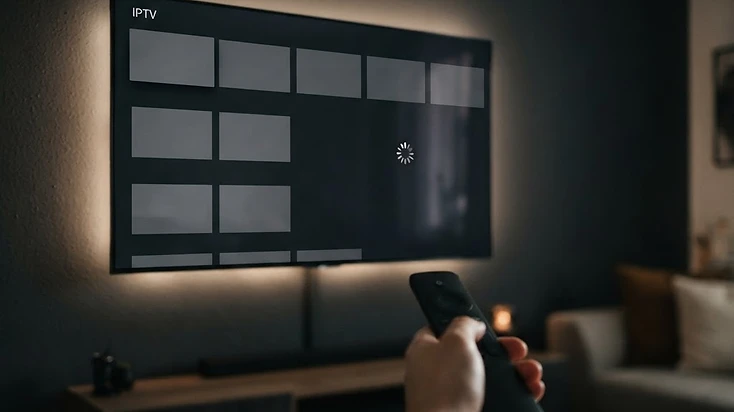
Quick Answer: Why Is Your Televizo Playlist Not Loading?
You installed Televizo, entered your playlist details, and expected your channels to appear. Instead, the playlist refuses to load, displays an error, or shows an empty channel list. This can be frustrating, especially when the same playlist worked previously. The good news is that many playlist loading problems can be diagnosed without reinstalling the application or purchasing another subscription.
Do not delete a working playlist configuration until you have saved the correct details needed to restore it. Work through the nine fixes below in order — the first few catch the majority of real-world cases.
Fix 1: Check Your Internet Connection
Before changing any Televizo settings, confirm your device is connected to the internet. Open another application that requires internet access, such as a browser or a legitimate streaming app. If other services cannot connect, focus on the network first — no player can load a playlist without a working connection.

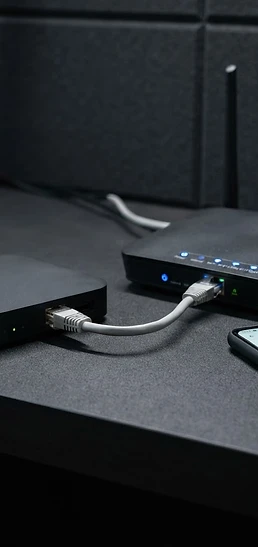
- Restart your router and your streaming device — a simple reboot resolves many intermittent connection issues.
- If your device uses Wi-Fi, move it closer to the router or switch to a 5 GHz band where supported.
- Test Ethernet where your device supports it — a wired connection is more stable for large playlist downloads.
- Check that no other device on your network is saturating the bandwidth with a large download or upload.
A connection can work intermittently — enough to load a web page — while still failing to retrieve a large playlist file. If pages load but the playlist does not, a weak or unstable connection is still a prime suspect.
Fix 2: Verify Your M3U Playlist URL
An M3U URL is often a long web address containing the information needed to access a playlist. Even one missing character can make the URL invalid and cause the playlist to fail silently — no channels, no error, just an empty list.
Check for:
- Missing characters at the start or end of the URL
- An incorrect server address or domain name
- Accidental spaces inserted during copy-paste
- An incomplete URL truncated by a messaging app
- An incorrect HTTP or HTTPS scheme
- Expired authorization tokens embedded in the URL
If possible, copy the entire URL again from your authorized service provider and paste it directly into Televizo. Avoid manually modifying credential strings unless your provider specifically instructs you to do so. Never publish a real playlist URL in screenshots or public support forums, because it may contain private account information.
Fix 3: Check Your Xtream-Style Login Details
If you use an Xtream-compatible login instead of an M3U URL, verify each individual field. You need three values: a server address, a username, and a password. Make sure each value is entered in the correct field.
Common mistakes include the server address accidentally containing the username, spaces added during copying, and uppercase vs lowercase errors in a case-sensitive password. Check each character carefully, and if the credentials are correct but authentication still fails, ask your service provider to verify the account and the current server address.
Read the full Xtream Codes setup guide →Fix 4: Confirm Your Subscription or Source Is Active
If your playlist worked yesterday but suddenly stopped today, the issue might be outside Televizo entirely. A content service may suspend access because an account expired, reached a device limit, or encountered server problems. Contact the source provider to confirm:
- 1
The account remains active
Check that your subscription has not expired or been suspended.
- 2
The server address has not changed
Providers occasionally migrate servers; an old address stops working.
- 3
Your connection limit has not been exceeded
Many services limit simultaneous devices on one account.
- 4
The playlist is currently available
Confirm the source is up and serving content, not in a maintenance window.
Televizo displays content supplied by your playlist source; it does not control the underlying service account. If the source is down, no player can show channels that are not being delivered.
Fix 5: Refresh the Playlist
Sometimes a playlist loads incorrectly because the application is using outdated or incomplete data from a previous attempt. Open Televizo, locate your playlist management options, select the affected playlist, and use its available refresh or update action.
Allow the application enough time to retrieve its data — a large playlist may require more time to load than a small one. Avoid repeatedly triggering refresh while a previous update is still running, as that can cause conflicts or incomplete loads. If the application displays a specific error message, record it for troubleshooting.
Fix 6: Restart Televizo Completely
Closing an app and returning to the home screen does not always stop its background processes. A full restart clears temporary application states without deleting playlist information.
On Android TV or Google TV:
- 1
Open device Settings
Navigate to the Settings menu on your device.
- 2
Go to Apps
Find the Apps or Applications section.
- 3
Select Televizo
Choose Televizo from the list of installed apps.
- 4
Choose Force stop
If the option is available, force stop the app to end all its processes.
- 5
Reopen the application
Launch Televizo again and try loading your playlist.
On Fire TV, the menu is usually located under the installed applications management section. Restarting can clear temporary application states without deleting playlist information, so it is a safe step to try before anything more invasive.
Fix 7: Clear the Application Cache
If Televizo has been working for months and begins behaving unexpectedly, cached temporary data may contribute to the problem. Open your device's app settings and find Televizo's storage options.
After clearing the cache, reopen Televizo and refresh your playlist. The app will rebuild its temporary data from scratch, which often resolves corruption that built up over time.
Fix 8: Check for Application Updates
An outdated application build may have compatibility or stability issues that a newer version has already fixed. Open the trusted app store or official update channel you used to install Televizo, and check whether an update is available.
If an update is available, review the release information and install it. Avoid downloading modified or unofficial APK files from random websites — an untrusted APK may expose your credentials or introduce malicious software. Always update from the official source you originally used.
Fix 9: Test a Different Authorized Playlist
If you have access to another legitimate playlist, test it in the same application. This helps distinguish a source-specific problem from a wider device or app problem. If one playlist works and another does not, investigate the failing source. If every playlist fails, inspect the application, device, network, or shared configuration.
You can also test the affected playlist in another compatible player if your provider's terms permit it. Do not assume one result conclusively identifies the cause — use the comparison as another diagnostic clue that narrows down whether the problem is the source, the network, the device, or the app.
Televizo Playlist Troubleshooting Table
Use this table to match your specific symptom to the first thing you should check.
| Problem | What to check first |
|---|---|
| Invalid credentials | Username, password, server URL |
| Playlist URL error | Complete M3U address — re-copy from provider |
| Empty channel list | Source contents and a manual refresh |
| Worked before, stopped today | Account status and server availability |
| All playlists fail | Network, device, application cache |
| App freezes during loading | Cache, memory, app update |
| Only one playlist fails | Source-specific issue — contact provider |
Frequently Asked Questions
These are the most common questions about Televizo playlists that won't load, with direct answers.
Final Checklist
Before contacting support, confirm that:
- Your internet connection works and is stable enough for a large download.
- Your playlist details — M3U URL or Xtream server, username, password — are correct.
- Your content account is active and has not expired or hit a device limit.
- Your device supports the application and meets its minimum requirements.
- Your installed app is up to date from an official source.
- You have tested a controlled playlist refresh after clearing the cache.
If the problem persists, send your provider the error message, your device model, and the approximate time of the failure. Do not share credentials publicly — send them only through your provider's official support channel.
For further setup help, the Televizo setup checklist walks through every configuration step.
Go to the Televizo setup checklist →Televizo Support Team
Product Documentation & Troubleshooting
The Televizo Support Team creates product documentation and troubleshooting resources based on the Televizo Player application and common user support scenarios. We separate problems caused by the app, the device, the network and the playlist source so you can reach the right fix — and the right support — faster.
Published 9 Oct 2026 · Last updated 9 Oct 2026 · Reviewed for accuracy 9 Oct 2026
Related Televizo Guides
Ready to get started?
Install Televizo, add your playlist, or get help from our support team.