

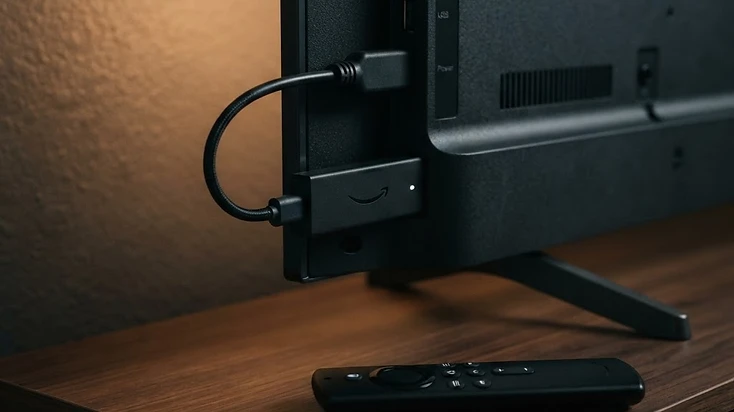
Quick Answer: What's the Best IPTV Player for Firestick?
Amazon Fire TV devices are popular for streaming because they can turn compatible televisions into app-based entertainment systems. But finding the right IPTV player is not always straightforward. Some applications are designed for smartphones, others work better with a remote control, and some emphasize advanced customization while others prioritize simplicity.
The best IPTV player for your Firestick should fit your device, support your authorized playlist, and make everyday navigation easy. In this guide, we explain what matters and compare three player options worth investigating.
1. Televizo: A Flexible IPTV Playlist Player
Televizo is an IPTV media player designed for Android-based devices. Its feature set includes multiple playlists, favorites, electronic program guide support, and several playback controls. For Fire TV users, the main attraction is having an organized interface for compatible playlist data.
Televizo supports:
- M3U playlist URLs
- Xtream-style credentials (server, username, password)
- Electronic Program Guide (EPG)
- Favorites and channel organization
- Playlist management for multiple sources
- Channel searching and sorting
- Playback track and subtitle selection where available

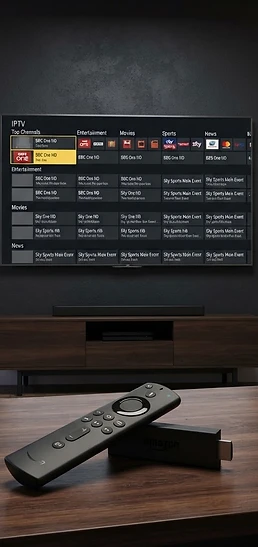
Televizo is particularly relevant if you also use an Android phone, tablet, or Google TV device, because you can become familiar with its interface across supported Android platforms. The application itself does not provide television channels — it reads playlists you supply.
Read the Televizo Firestick setup guide →2. TiviMate: A Television-Focused Alternative
TiviMate is often considered by users who want an interface designed around television viewing and remote-control navigation. It is relevant to Fire TV users who value a traditional TV guide and extensive channel organization. When evaluating TiviMate, examine which functions are included in its free and paid tiers — some features may require a premium license.
Also verify compatibility with your Fire TV model and current operating system. TiviMate may be preferable if you use a streaming stick almost exclusively with a large television and do not need cross-device playback on a phone or tablet.
Read the full Televizo vs TiviMate comparison →3. IPTV Smarters: A Dashboard-Based Option
IPTV Smarters-style applications often organize content into dedicated sections for live television, movies, and series. For some users, that arrangement feels more familiar than a conventional playlist interface. However, IPTV Smarters products and versions differ significantly.
Check the exact developer, installation method, and supported features before choosing one. Avoid confusing an IPTV player with a subscription service that supplies content — the player is the software, the service is the source, and they are separate products.
Firestick IPTV Player Comparison
The table below summarizes how the three players compare across the features that matter most on a Firestick. Use it as a starting point, not a substitute for testing the latest software on your specific device.
| Feature | Televizo | TiviMate | IPTV Smarters |
|---|---|---|---|
| Fire TV compatibility | Supported models | Supported models | Depends on app |
| M3U support | Yes | Yes | Commonly available |
| Xtream-style login | Yes | Yes | Commonly available |
| EPG | Yes | Yes | Version-dependent |
| Favorites | Yes | Yes | Version-dependent |
| Android phone support | Yes | TV-focused | Version-dependent |
| Primary appeal | Flexible playlist management | TV-style interface | Dashboard-style interface |
How to Choose the Right Firestick IPTV Player
Choosing a player is about matching the app to your device, your playlist, and your viewing habits. Here are the five things worth checking before you install or pay for anything.
Check your device first
Different Fire TV models may have different operating systems and installation restrictions. Do not assume instructions for one Fire TV Stick will work on every newer device. Confirm that your chosen player explicitly supports your model and software version.
Check your playlist format
Some users have a single M3U URL. Others have an Xtream-style server address, username, and password. Your player must support the access method supplied by your legitimate content provider — if your provider only gives you an M3U URL, a player that requires Xtream credentials will not work.
Check remote-control navigation
The interface should be usable from your sofa. Look for convenient category browsing, responsive scrolling, and easy access to favorites. A player designed for touchscreens may feel clunky with a directional-pad remote.
Check guide functionality
If you regularly watch scheduled live television, EPG support can be valuable. However, the guide needs compatible data from your provider or a configured EPG source — a player with EPG support cannot display a guide if your source supplies no EPG data.
Check pricing before upgrading
Free application functionality and premium player features are not the same as a TV service subscription. Be clear about what you are buying: premium player features unlock app capabilities, not channels.
How to Install an IPTV Player on Firestick
The safest installation method depends on the application and your Fire TV model. For an app listed in a compatible official store:
- 1
Open the device's app search
Use the Find or Search function on your Fire TV home screen.
- 2
Search for the exact application name
Type the name carefully to avoid similarly-named imposter apps.
- 3
Verify the developer
Check the developer name matches the official one before installing.
- 4
Select the app
Open the app's listing page.
- 5
Choose Install
Download and install the application.
- 6
Open the application
Launch it and proceed to add your playlist.
If an application is distributed only through an APK, follow installation instructions from a trusted, verified source and ensure your device permits that method. Do not disable security features or install unknown APKs simply because a website promises free premium television channels.
For a Televizo-specific setup path, the setup checklist walks through every step.
Go to the Televizo setup checklist →How to Add an M3U Playlist
After installing a compatible player, adding an M3U playlist is straightforward:
- 1
Open the application
Launch your installed IPTV player.
- 2
Find the playlist management interface
Look for an Add Playlist or Settings option.
- 3
Choose the M3U playlist option
Select the M3U URL entry method.
- 4
Enter the complete authorized URL
Paste the full URL from your provider without modification.
- 5
Save the configuration
Confirm and save the playlist entry.
- 6
Wait for the content list to load
Allow time for channels and groups to populate.
If the URL contains private authentication information, keep it confidential — never share a real playlist URL in screenshots or public forums.
How to Add Xtream-Style Credentials
If your provider offers server-based login instead of an M3U URL:
- 1
Choose the Xtream-compatible login option
Select Xtream Codes or the equivalent in your player.
- 2
Enter the server address
Type or paste the server URL your provider gave you.
- 3
Enter your username
Check for accidental spaces and case sensitivity.
- 4
Enter your password
Verify uppercase and lowercase characters carefully.
- 5
Save the information
Confirm and save the credentials.
- 6
Allow the player to retrieve content categories
Wait for live, VOD, and series categories to populate.
The exact fields depend on the application and the service. For a detailed walkthrough, the Xtream Codes setup guide covers every field.
Read the Xtream Codes setup guide →Why Your Firestick Might Buffer
Buffering does not automatically mean you chose the wrong player. Common causes include:
- Weak Wi-Fi signal or interference
- Overloaded content servers on the source side
- Insufficient available bandwidth on your connection
- High-bitrate streams that exceed your connection speed
- Device overheating or limited hardware resources
- Background downloads or updates consuming bandwidth
- Incompatible playback formats stressing the decoder
Test multiple authorized streams before changing players. If every app struggles on the same network, investigate your internet connection. If one particular stream fails across different apps, the source may be responsible. For a broader diagnosis, the IPTV buffering troubleshooting guide covers each cause in detail.
Read the IPTV buffering guide →Frequently Asked Questions
These are the most common questions about choosing an IPTV player for Firestick, with direct answers.
Final Recommendation
If you are choosing your first IPTV player for a compatible Fire TV device, start by testing Televizo with a legitimate playlist. Evaluate the interface, favorites, EPG, and playback before paying for premium features. If you want a more television-centered interface, compare TiviMate using the same playlist and device.
The best application is the one that is secure, compatible, and comfortable to use every day. Install the free version, load your own authorized playlist, and spend ten minutes navigating — the interface that feels natural from your sofa is the right one.
Televizo Editorial Team
Product Documentation & Support
The Televizo Editorial Team writes and maintains the official documentation for Televizo Player. We test every guide on real Android TV, Fire TV, Google TV and Smart TV hardware using both M3U and Xtream Codes playlists, and we update articles whenever the app or setup steps change.
Published 9 Oct 2026 · Last updated 9 Oct 2026 · Reviewed for accuracy 9 Oct 2026
Related Televizo Guides
Ready to get started?
Install Televizo, add your playlist, or get help from our support team.